

Call Transfer
This page talks about how calls can be transferred to other users.
Overview
With the Transfer Calls function users can easily transfer calls to other user using the phone keypad.
Set up a Call Transfer
This option is available only for Phone terminal extensions with the multi-user aware permission enabled. To enable this permission, click on the Roles and Phone Numbers icon under the Tools area. In the Roles and phone numbers for <user_name> page, enable the User is multi user aware permission as shown below.
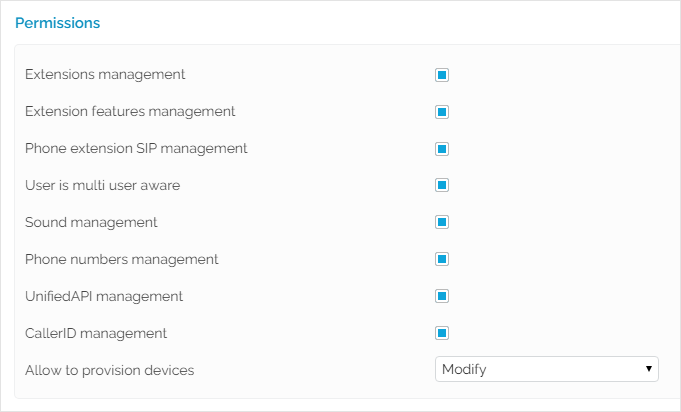 Screenshot: The Permissions section from the Roles and phone numbers management page
Phone Terminal Keypad Operations
Here are the operations available:
Blind transfer - Press #1 followed by a phone number to blind/cold transfer the call. It is not possible to recover the call when the destination phone number cannot answer the phone.
Attended transfer - Press *2 followed by a phone number to put the interlocutor on hold and transfer the call. It is possible to recover the call when the destination phone number cannot answer the phone.
Usage Example
There are two technicians working in the support team. A call is received on the extension belonging to tech guy no. 1, who has no solution for the caller's problem, but knows that tech guy no. 2 dealt with a similar issue last week.
- If tech guy no. 1 dials
*2followed by his colleague's extension number, the call will be put on hold and a new call will be automatically placed to his colleague's number. - Tech guy no. 2 answers and listens to his colleague presenting the situation, then hangs up.
- Tech guy no. 2 will be automatically connected with the caller on hold.