

Call Waiting
This page talks about how you can manage the Call Waiting function over the phone.
Overview
The Call Waiting feature allows the user to answer multiple calls. Calls are not rejected when the extension is busy. In order to use this feature, your phone terminal must be Call Waiting compliant. For more information, read Phone Terminal Setup the Calling Features area in the page.
Set up Call Waiting
In the VoipNow interface, follow the steps below:
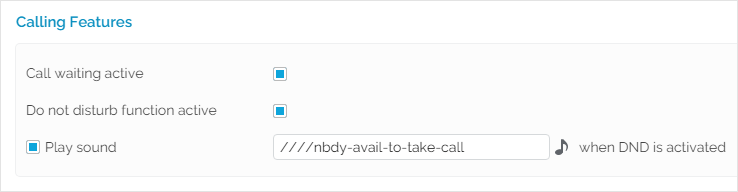 Screenshot: The Calling Features section of the Phone Terminal Setup page
- Choose the extension for which you want to configure Call Waiting and click the Phone Terminal Setup icon in the Tools area.
- In the Setup Phone Terminal
<extension_label>page, scroll down to the Calling Features section. - To enable the feature, select the Call waiting active checkbox.
Toggle Status via the Phone Terminal
Here are the operations available:
- Activate Call Waiting with *71: To activate the Call Waiting option, dial *71 from your extension phone keypad. Wait for the confirmation message and hang up the phone. Call Waiting can also be activated from the VoipNow web interface in the Phone Terminal properties page.
- Deactivate Call Waiting with *70: To deactivate the Call Waiting option and have callers hear the BUSY signal while you are involved in another phone conversation, dial *70 from your extension phone keypad. Wait for the confirmation message and hang up the phone.